? What is Ollama?
Ollama is a free, open-source application that runs large language models directly on your computer. Your documents, questions, and AI responses never leave your machine — Ollama is the engine that makes private AI possible in Chordalia products.
Two kinds of models are used by Chordalia apps:
- Chat models — answer questions and hold conversations
(e.g.
llama3.1:8b,gemma3:12b). - Embedding models — convert text into numbers so the
app can find documents by meaning rather than exact keywords
(e.g.
nomic-embed-text).
Some products also use vision models that can describe
images (e.g. gemma3:12b, llava).
1 Check your hardware
Ollama runs on most modern computers, but larger models need more memory (RAM). You don't need a graphics card to run Ollama — but if you have one, Ollama will use it automatically to run models much faster.
Recommended minimums
- 8 GB RAM — small models (up to ~7B parameters):
llama3.2:3b,gemma3:4b - 16 GB RAM — medium models (up to ~13B):
llama3.1:8b,gemma3:12b - 32 GB RAM — large models (up to ~30B):
llama3.3:70b(quantised)
Ctrl+Shift+Esc to open Task Manager,
then click the Performance tab → Memory.
The total is shown in the upper right.
2 Install Ollama
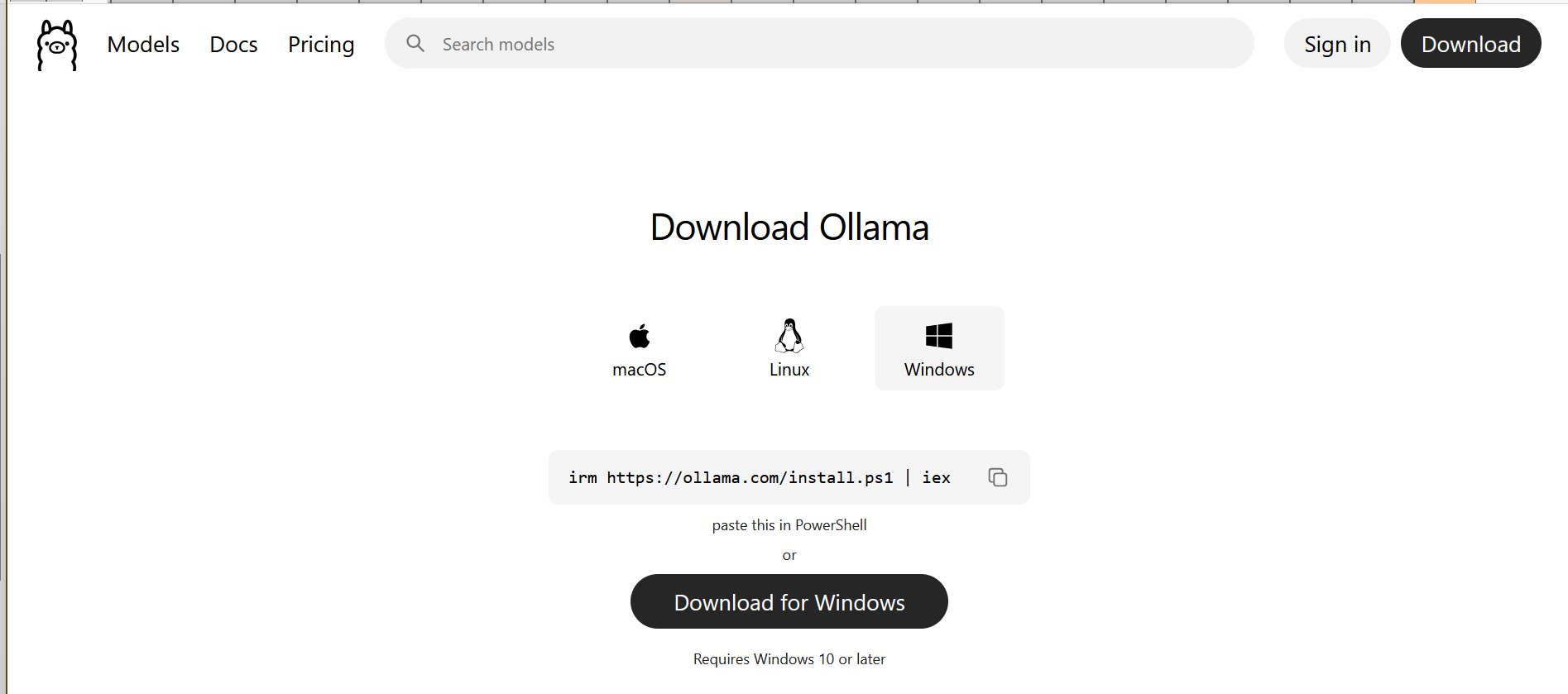
Download the installer from the official site:
Choose your operating system (Windows, macOS, or Linux) and run the installer. On Windows, the installer registers Ollama as a startup app, so it launches in the background when you log in — you'll see an Ollama icon in the system tray (lower-right corner near the clock). It runs in your user session, not as a Windows service, so logging out will stop it; it'll start again the next time you log in. On macOS, Ollama appears in the menu bar with the same login-time autostart behaviour.
Verify it's running
After installing, open a Command Prompt or terminal and run:
You should see something like ollama version is 0.12.0.
If you get "command not found", close and reopen the terminal so it
picks up the new PATH entry, then try again.
3 Download a chat model
Ollama doesn't come with any models pre-installed — you choose and
download them yourself. For general-purpose Q&A over your
documents, llama3.1:8b is a solid starting point: fast
on 16 GB RAM, good answer quality, 4.7 GB download.
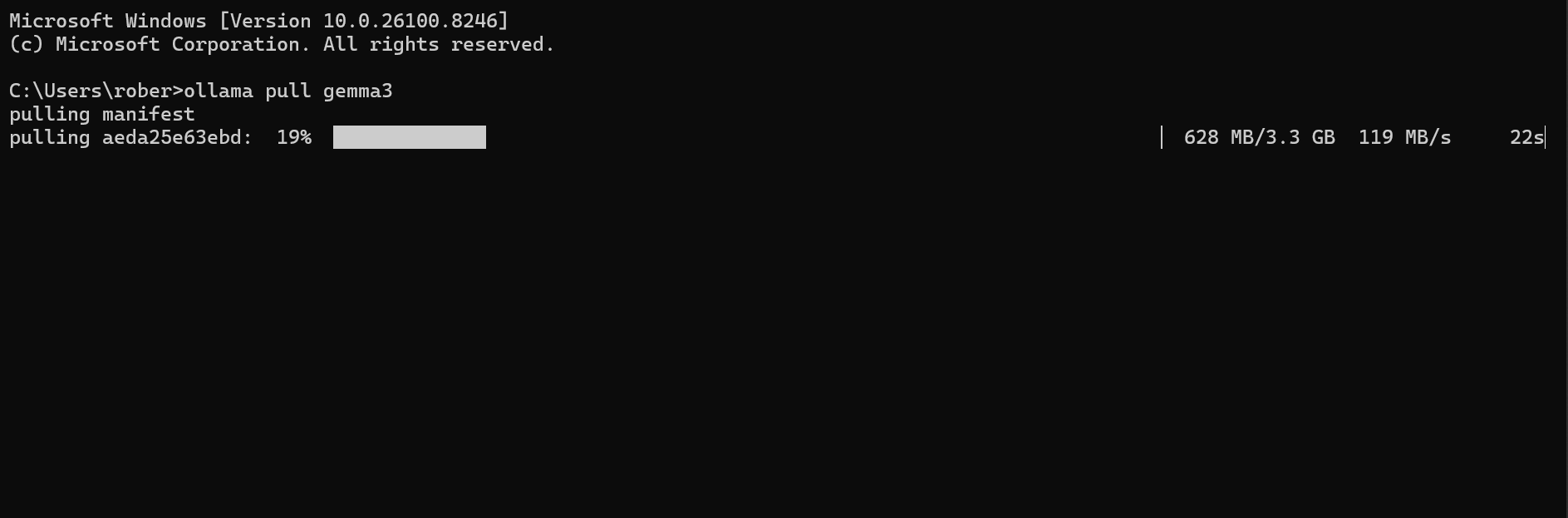
The first pull of a model downloads it to your computer (this can take anywhere from 2 to 20 minutes depending on your internet connection). Subsequent uses are instant.
Other popular chat models
llama3.2:3b— 2 GB, runs on 8 GB RAM machines, faster but less accurategemma3:12b— 7 GB, Google's model, strong at following instructionsqwen2.5:14b— 9 GB, excellent for technical content and codellama3.3:70b— 40 GB, slow but highest quality, needs 64 GB+ RAM
Browse the full catalog at ollama.com/library →
4 Download an embedding model
Embedding models are much smaller than chat models (typically under 300 MB). They convert text into numeric representations that let the app find documents by meaning instead of by exact word matches.
The standard choice is nomic-embed-text:
5 Download a vision model (optional)
Vision models look at images (photographs, screenshots, scanned pages) and describe what they see so that images become searchable by content. For example, searching for "birthday cake" finds photos that contain one, even if no filename mentions it.
gemma3:12b is a good default — 7 GB, handles both
text and image prompts:
Alternatives
llava:7b— 4.5 GB, the original open-source vision model, faster but less detailedllava:13b— 8 GB, more accurate descriptionsminicpm-v— 5.5 GB, strong at recognising objects and text in images
6 Verify everything is working
List the models you've downloaded:
You should see all the models you pulled, along with their sizes:
Try a quick test of the chat model from the command line:
If the model answers (correctly!), Ollama is ready for Chordalia apps to use.
Using Ollama in your Chordalia product
Arion — Tier 3 (Private AI)
Open Settings → Ollama (Tier 3). Set the host
to http://localhost:11434, then click Refresh
on the Chat Model and Embedding Model dropdowns — Arion queries
Ollama and lists your installed models. Pick
llama3.1:8b (or your preferred chat model) and
nomic-embed-text.
For vision: Settings → Vision → tick Enable image description, pick your vision model.
Cadenzium
Open Settings → AI. Set the Ollama host and pick a chat model — Cadenzium uses it to clean up OCR output from scanned journal pages.
Even a small model like llama3.2:3b works well for
OCR correction, so you can get away with less RAM for Cadenzium
than for Arion Q&A.
! Troubleshooting
"Connection refused" or "Could not connect to Ollama"
Ollama isn't running. On Windows, check the system tray (lower-
right corner near the clock) for the Ollama icon. If it's not
there, search for Ollama in the Start menu and launch it
— you'll see an Ollama is running notification.
On macOS, look for the Ollama icon in the menu bar. On Linux,
run ollama serve in a terminal.
The model is very slow
First-time queries of a model load it into memory, which can take 10–30 seconds. Subsequent queries are much faster. If it stays slow, the model may be too large for your RAM (Ollama will fall back to disk, which is dramatically slower). Try a smaller model.
Out of disk space
Models are stored in %USERPROFILE%\.ollama\models on
Windows, ~/.ollama/models on macOS/Linux. To free space,
remove models you no longer use:
Need to use a GPU on Windows
Ollama detects NVIDIA and AMD GPUs automatically. If it's not using
your GPU, make sure your graphics drivers are up to date — the
Ollama installer logs at
%LOCALAPPDATA%\Ollama\server.log will show whether a
GPU was detected.