? What is Azure AI Search?
Azure AI Search is Microsoft's hosted search service. When a Chordalia product uses it, your documents (the text content, not the files themselves) are uploaded to a search index inside your own Azure account. Searches then run against that index instead of your local hard drive.
Why pay for this? Three reasons:
- Speed at scale — even a 100,000-document index returns results in only tens of milliseconds.
- Semantic search — Azure AI Search can find documents by meaning, not just keywords (“vacation” finds “holiday” and “time off”).
- Multiple machines, one index — phone, laptop, and desktop all search the same cloud index without running a personal server.
What will it cost?
- Free (F) — $0/month. 50 MB total storage, 3 indexes, no performance guarantees. Fine for trying it out; typically fills up around 3,000–5,000 documents.
- Basic (B) — ~$75/month. 2 GB storage, 15 indexes, proper SLA. The realistic choice for actual personal use.
- Standard S1 / S2 / S3 — starting at ~$250/month. Overkill for personal use; intended for Chordium and similar multi-user deployments.
Full pricing: azure.microsoft.com/pricing/details/search →
- Under ~3,000 documents: Free is fine.
- More than that, or if you'd rather not worry about limits: Basic from the start.
1 Create a search service
In the Azure portal, use the search bar at the top and type AI Search (the service is sometimes still labelled Azure Cognitive Search — same thing, renamed). Click the result.
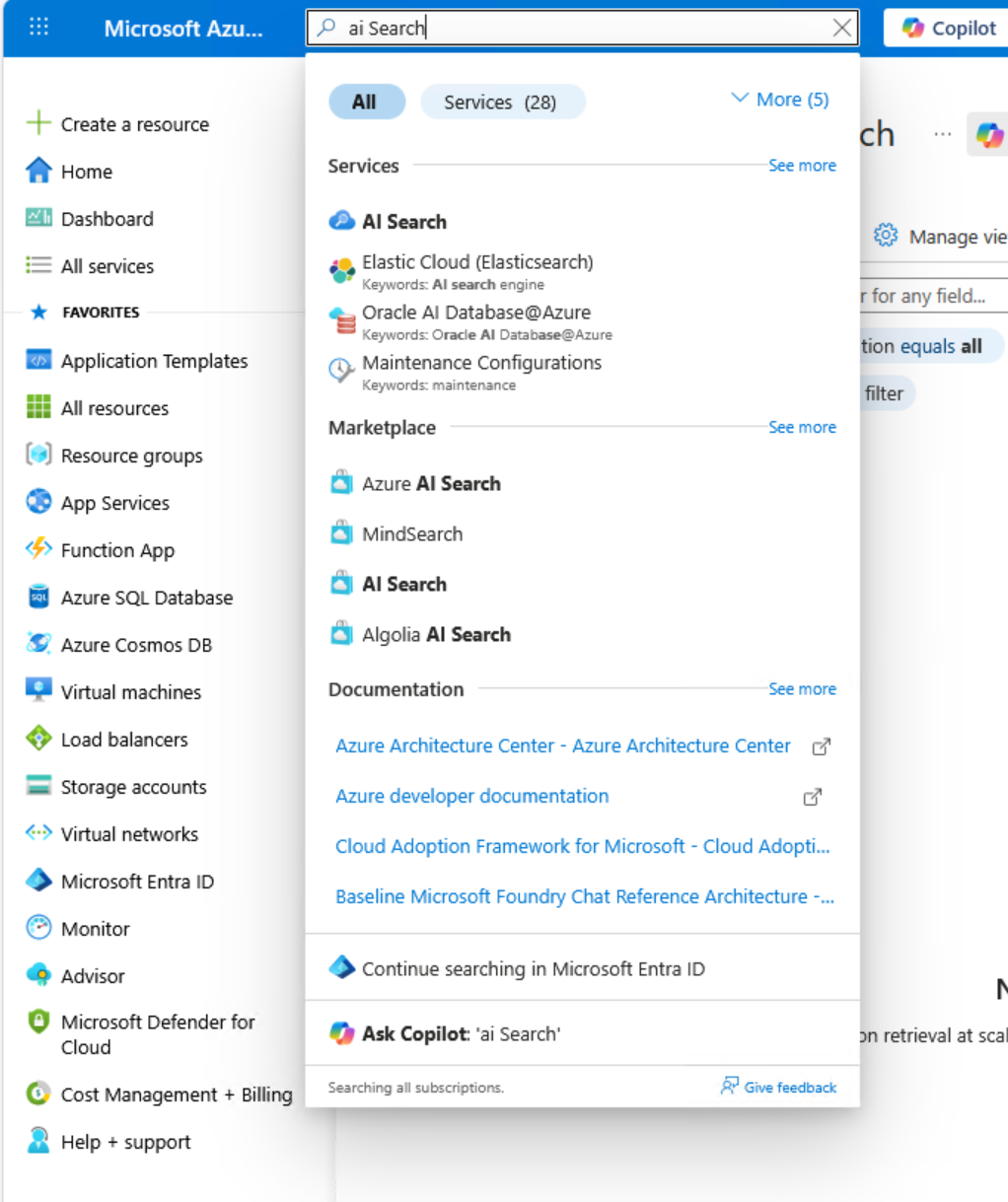
Steps
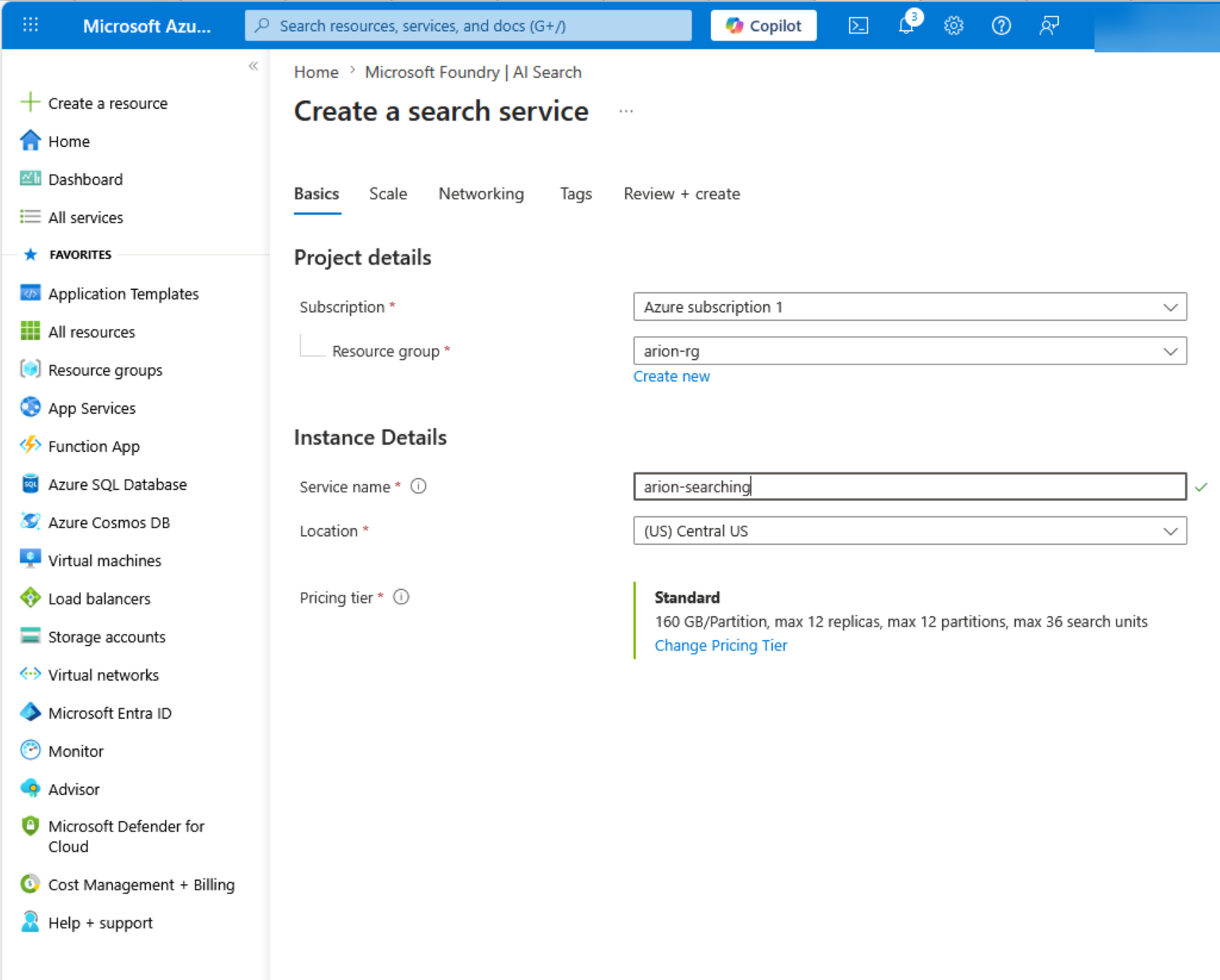
- Click + Create.
- Pick your Subscription (the free trial, unless you have more than one).
- Pick the Resource group you created earlier
(e.g.
chordalia-rg). - Give the service a Service name — this becomes
part of the URL, so pick something short and recognisable
(e.g.
chordalia-search). Names must be globally unique and lowercase. - Pick a Location. Use the same region as your Azure OpenAI resource if you have one, for lower latency when the two talk to each other.
- Pick a Pricing tier: Free to try it out, or Basic for real use.
- Click Review + create, then Create.
Provisioning takes about a minute. When the banner says Your deployment is complete, click Go to resource.
2 Copy the endpoint and API key
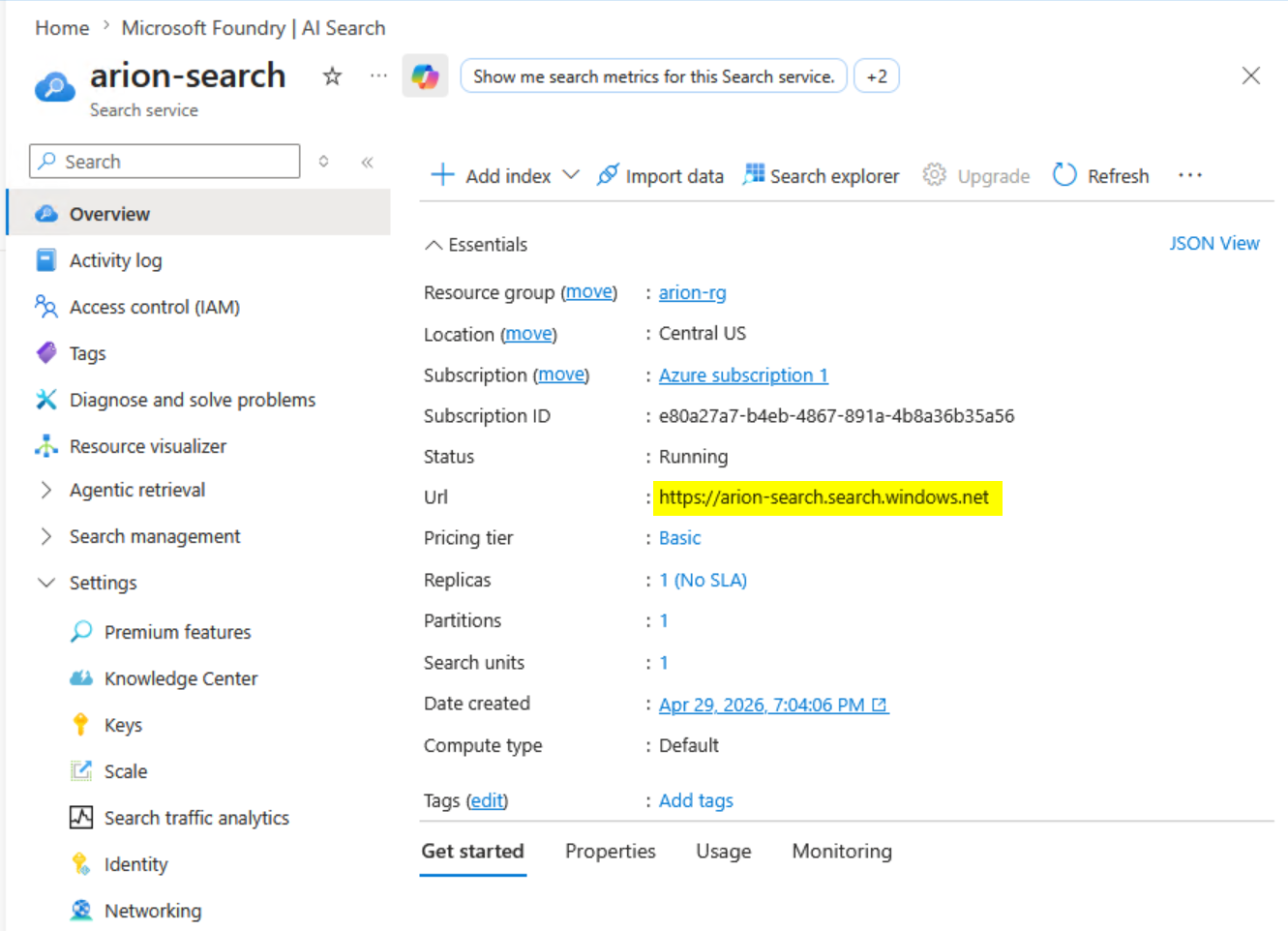
On the search service's overview page, the URL at
the top of the page is your endpoint — it looks like
https://chordalia-search.search.windows.net. Copy it.
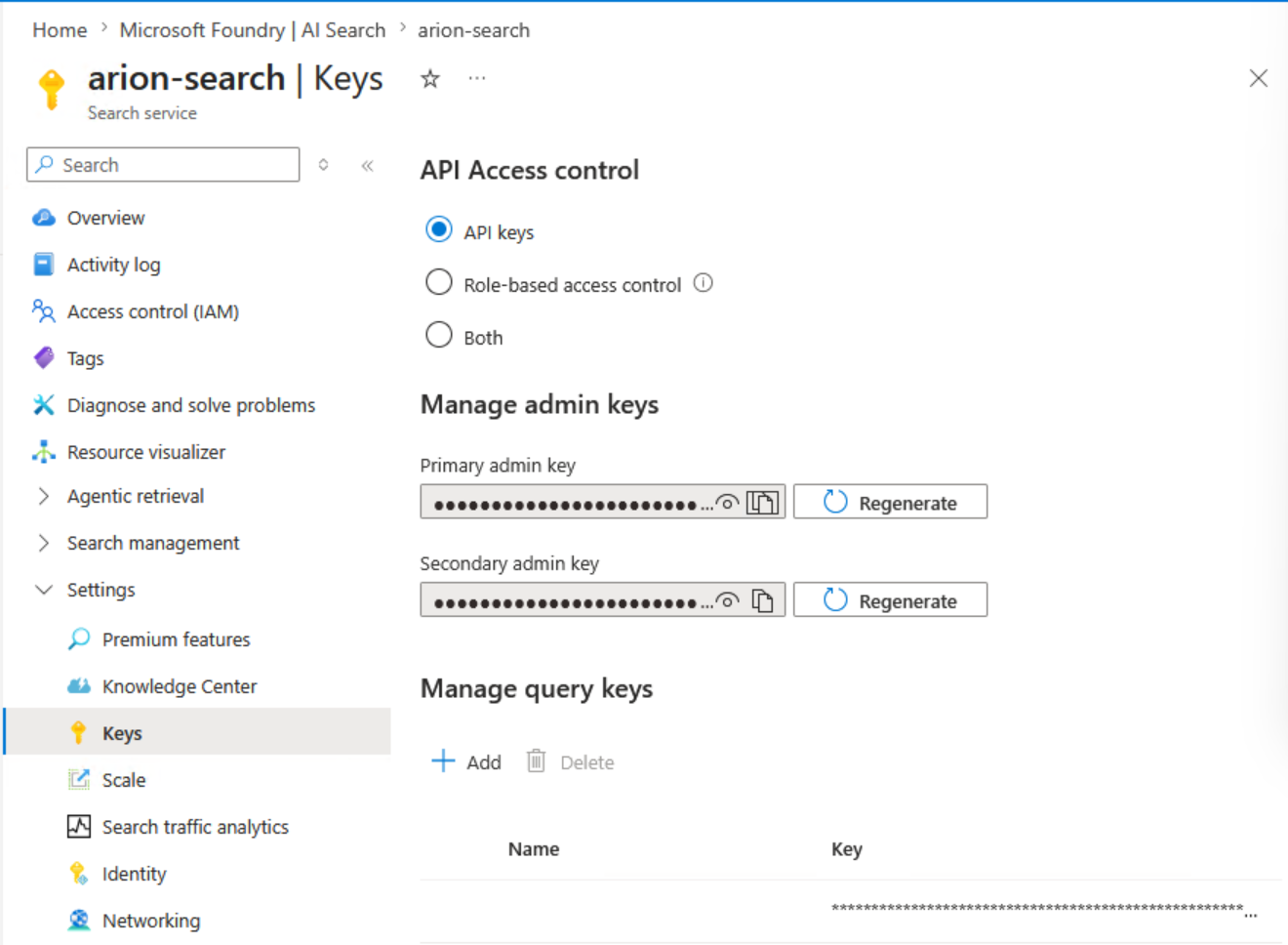
Next, in the left sidebar, click Keys (under Settings). You'll see two kinds of keys:
- Admin keys (Primary / Secondary) — full control. Used by Chordalia products to create and update the index.
- Query keys — read-only; only useful if you want to build your own search client with no write access.
Chordalia products need an admin key. Copy Primary admin key — Secondary is a backup of equal validity.
3 Choose an index name
An Azure AI Search service can host many indexes — one per logical collection of documents. You don't have to create the index manually; Chordalia products create it automatically the first time they push documents. But you do pick its name.
Sensible defaults:
- Arion:
arion-documents - Chordium:
chordium-<tenant>
Rules: lowercase, dashes or underscores OK, no spaces, max 128 characters.
Using Azure AI Search in your Chordalia product
Arion — Tier 2
Open Settings → Azure (Tier 2). Paste:
- Endpoint URL → Azure AI Search endpoint
- Primary admin key → Azure AI Search API key
- Index name → Index name (default:
arion-documents)
After saving, use Tools → Push to Azure to upload your existing local index to the cloud service. Future scans push new/changed documents automatically.
Chordium
Edit chordium.yml or use the admin UI:
azure.search.endpointazure.search.api_keyazure.search.index_name
! Troubleshooting
"Service quota exceeded" or document uploads suddenly fail
You've hit a tier limit — most often the Free tier's 50 MB storage cap. In the portal, open your search service → Usage to see current storage. To fix: upgrade the pricing tier from Free to Basic (you'll need to delete and recreate the service — Azure doesn't allow in-place Free-to-Basic upgrades for search). Save your API key first so you can reconfigure the product quickly.
"403 Forbidden" when the product tries to upload documents
You pasted a Query key instead of an Admin key. Query keys only allow reads. Go back to Keys → copy the Primary admin key.
"Index name '...' is invalid"
Index names must be lowercase, contain only letters, digits, dashes, and underscores, and not start with a digit. Common mistake: using a capital letter or a space.
Searches work, but AI answers still return "no results found"
AI answers pull from the same index that keyword search uses, so if keyword search finds documents, the AI is getting excerpts. More often, the issue is that the question genuinely can't be answered from the indexed documents — the AI is being honest. Try a simpler question that references exact phrasing you know is in your documents, to confirm the flow is working end-to-end.
I want to start over with a clean index
In the Azure portal, open your search service → Indexes, pick the Chordalia product's index, and click Delete. The product will recreate it fresh on the next upload. Your local database is unaffected.
How do I delete the search service entirely?
Open the service in the portal, click Delete at
the top. Or — to remove everything Chordalia-related at once
(OpenAI, AI Search, and anything else) — delete the whole
chordalia-rg resource group.