? What is Azure?
Azure is Microsoft's cloud computing platform. When Chordalia products use "cloud AI" features, they connect to services that run inside your own Azure account — not ours. Your documents and queries go to your Azure resources; Chordalia Systems never sees them.
This guide walks through creating the Azure account itself. Once that's done, each Azure service Chordalia products use has its own short setup guide:
- Azure OpenAI — the AI model that answers questions
- Azure AI Search — the cloud search index (Arion Tier 2, Chordium)
- Azure AD app registration — required for the OneDrive connector
1 Have a Microsoft account ready
To create a personal Azure subscription, you need a Microsoft account (the same kind used for Outlook.com, Xbox, or OneDrive). If you already have one — for example, a personal Outlook or Hotmail address — skip ahead to Step 2.
Otherwise, create one at account.microsoft.com →
you@acme.com), that account is
managed by your company's IT department. You generally can't
create a personal Azure subscription with it — you'll need a
personal Microsoft account for the free trial described here.
2 Sign up for Azure
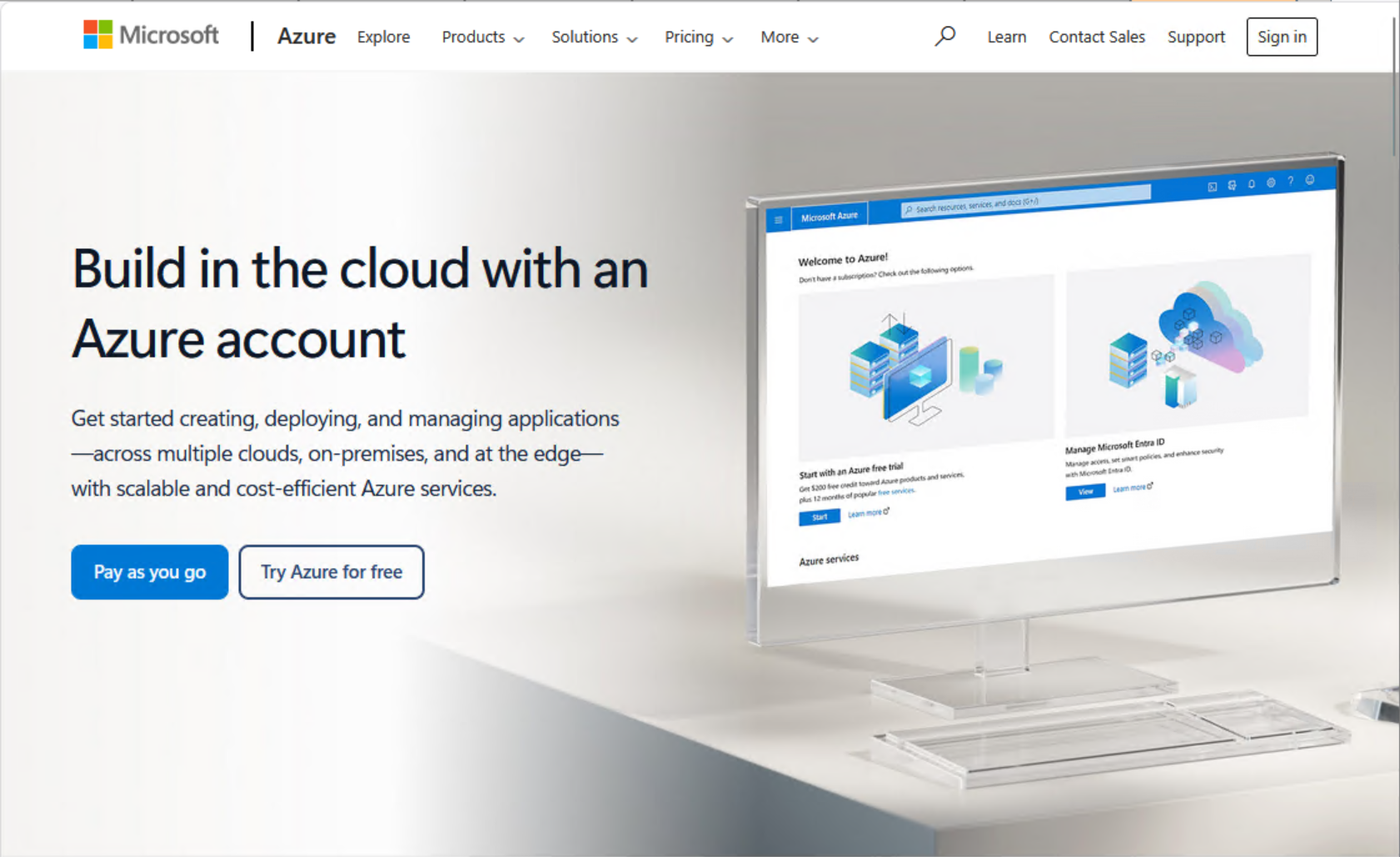
Open the Azure signup page:
https://azure.microsoft.com/free →
Click Start free or Try Azure for free. Sign in with the Microsoft account from Step 1 when prompted.
What you'll need to provide
- Profile info — name, country/region, address
- Phone number — Microsoft sends a verification code; use a number you control
- Credit or debit card — required to sign up. Any paid-service usage in the first 30 days comes out of your $200 credit, and Microsoft begins billing the card at day 31.
3 Wait for your subscription to activate
Once you submit the signup form, Microsoft takes anywhere from a few seconds to a few minutes to verify your details and activate the subscription. You'll receive a confirmation email.
When activation completes, Azure drops you on a "Let's start building, <your name>" welcome page with a "$200 USD in credits — Expires in 30 days" callout near the top. That callout is the visible confirmation that your free trial is active.
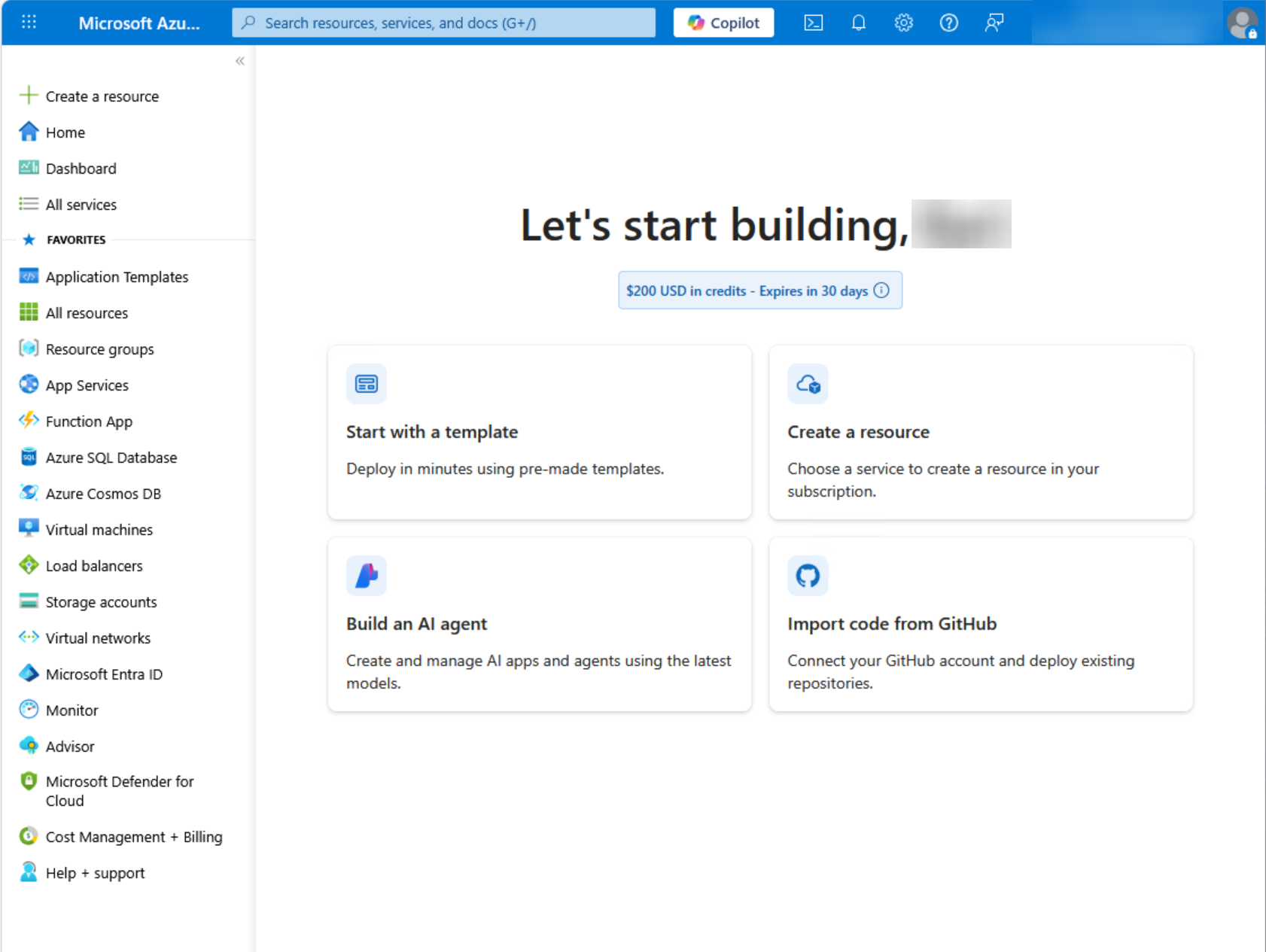
To see the subscription itself, type Subscriptions into the top search bar — you should see one entry (typically labelled Free Trial or Azure subscription 1, depending on Microsoft's current naming). That's where you'll later set spending limits and budget alerts.
4 Find your way around the Azure portal
The Azure portal at portal.azure.com is the web dashboard where you manage everything. Bookmark it now — you'll use it to create and configure the services that Chordalia products connect to.
The three concepts you need to understand
- Subscription — your billing container. The free trial created one for you. Every Azure resource belongs to a subscription and shows up on that subscription's bill.
- Resource group — a folder that holds related services, used for organisation and cost tracking. We'll create one in the next step.
- Resource — an individual Azure service (an AI model deployment, a search index, a storage account, etc.) that lives inside a resource group.
5 Create a resource group
Create a resource group to hold all the Chordalia-related services. This keeps them organised and makes it easy to see what you're spending and — if you ever want to — delete everything at once.
Steps
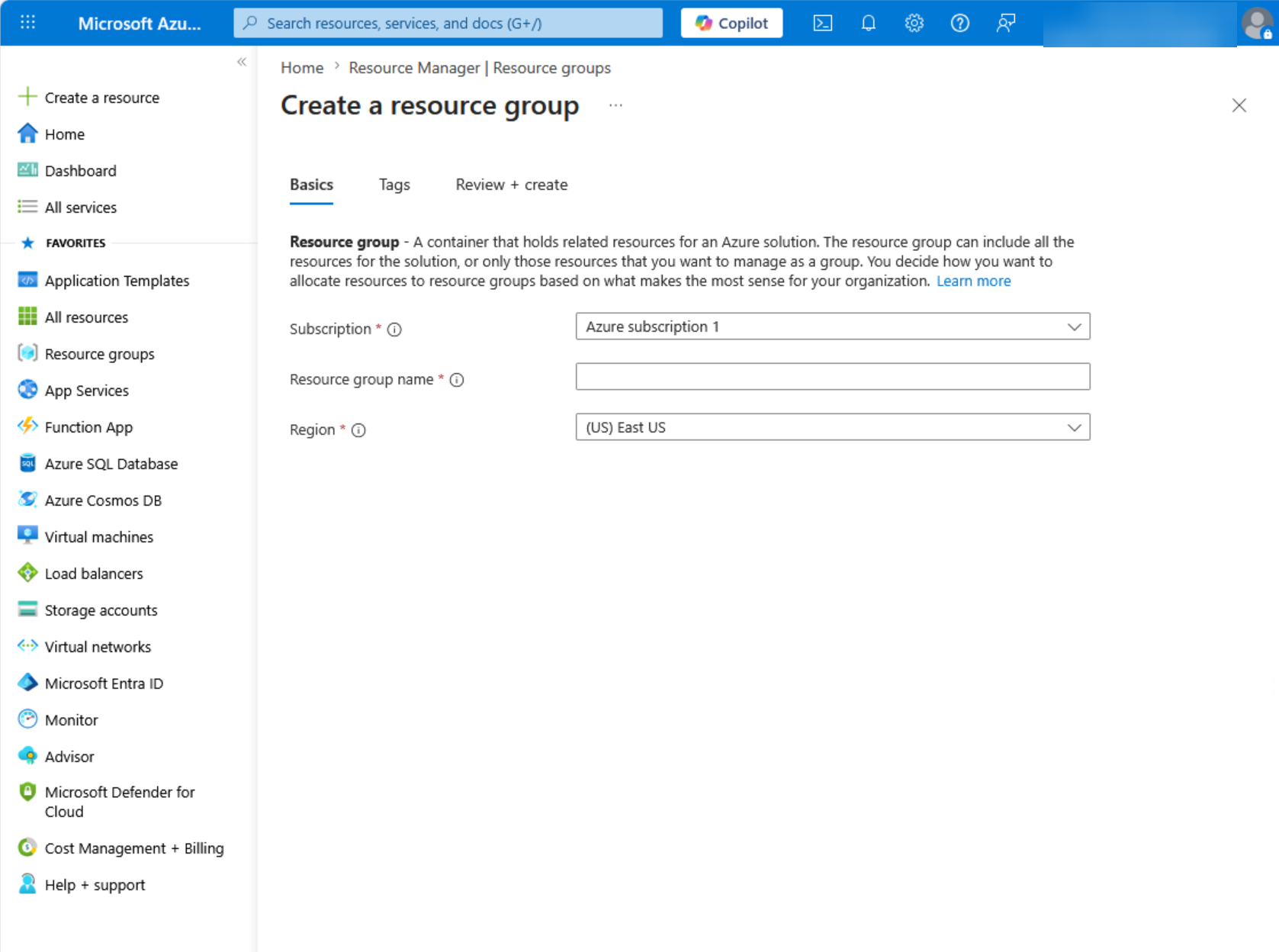
- In the portal search bar (top of screen), type resource groups and click the result.
- Click + Create.
- Pick your Subscription (the Free Trial, or Azure subscription 1, unless you've added more).
- Give the resource group a name — e.g.
chordalia-rgorarion-rg. - Pick a Region close to you geographically — this affects latency. See the callout below.
- Click Review + create, then Create.
6 What next?
Your Azure account is ready. Pick the service(s) you need for your Chordalia product:
Azure OpenAI →
Deploy a GPT model for AI question-answering. Required for Arion Tier 2 (Ask mode), Chordium, and Cadenzium AI features.
Azure AI Search →
Create a cloud-hosted search index. Required for Arion Tier 2 and Chordium.
Azure AD app →
Register an application for the OneDrive connector. Needed only if you want a product to read files from your OneDrive.
! Troubleshooting
"We couldn't process your payment"
Microsoft's verification sometimes rejects virtual cards, prepaid cards, or cards from certain issuers. Try a different card — any normal credit or debit card from a major bank should work. The card won't be charged during the first 30-day free-trial window (any usage comes out of the $200 credit), but Microsoft will start billing it from day 31 onward for any paid-service usage.
"This Microsoft account can't be used to sign up for Azure"
Your Microsoft account is probably a work or school account (managed by an organisation's IT department). Either create a new personal Microsoft account with a personal email address, or ask your organisation's Azure admin to set up a subscription for you.
"Your subscription doesn't have any eligible offers"
The free trial is a one-time offer per person/phone number. If you've used it before, you'll need to use a Pay-As-You-Go subscription instead. For Chordalia-scale use, Pay-As-You-Go typically costs a few dollars per month.
I accidentally created everything in the wrong region
You can't move most Azure resources between regions — but you can just delete the resource group and recreate it. That's why we use a dedicated resource group for Chordalia stuff: one right-click and everything inside it is cleaned up.
How do I avoid accidental charges?
Set a budget alert: in the portal, search for Cost Management + Billing → Budgets → + Add. Set a monthly limit (e.g. $10) and an email alert at 80% — you'll get a warning well before anything surprises you.