? What is Azure OpenAI?
Azure OpenAI is Microsoft's hosted version of OpenAI's GPT models (GPT-4o, GPT-4o-mini, etc.). Chordalia products send relevant document excerpts plus your question to Azure OpenAI, which returns a written answer with citations.
Crucially, the traffic goes to your own Azure account, not a shared Chordalia endpoint. Your documents and queries never touch our servers, and Microsoft's enterprise privacy terms apply to the content.
What will it cost?
Azure OpenAI charges per token (~750 words of input or output). For a typical Chordalia user asking a few questions a day:
- GPT-4o-mini (recommended default): ~$0.15 / million input tokens, ~$0.60 / million output tokens. Pennies per month for personal use.
- GPT-4o (higher quality): ~$2.50 / million input, ~$10 / million output. Still cheap for personal use — likely a dollar or two per month.
1 Check if you need to request access
In the past, Azure OpenAI was gated behind an application form. Microsoft has removed that requirement for most accounts — you can now create the resource directly. But if you're using a brand-new subscription, an Enterprise Agreement, or an account in certain regions, you may still hit a one-time access-request form.
If prompted, fill in the form honestly (intended use: "private document search and Q&A with my own data"). Approvals are usually granted within a day.
2 Create an Azure OpenAI resource
In the Azure portal, use the search bar at the top and type Azure OpenAI. Click the result.
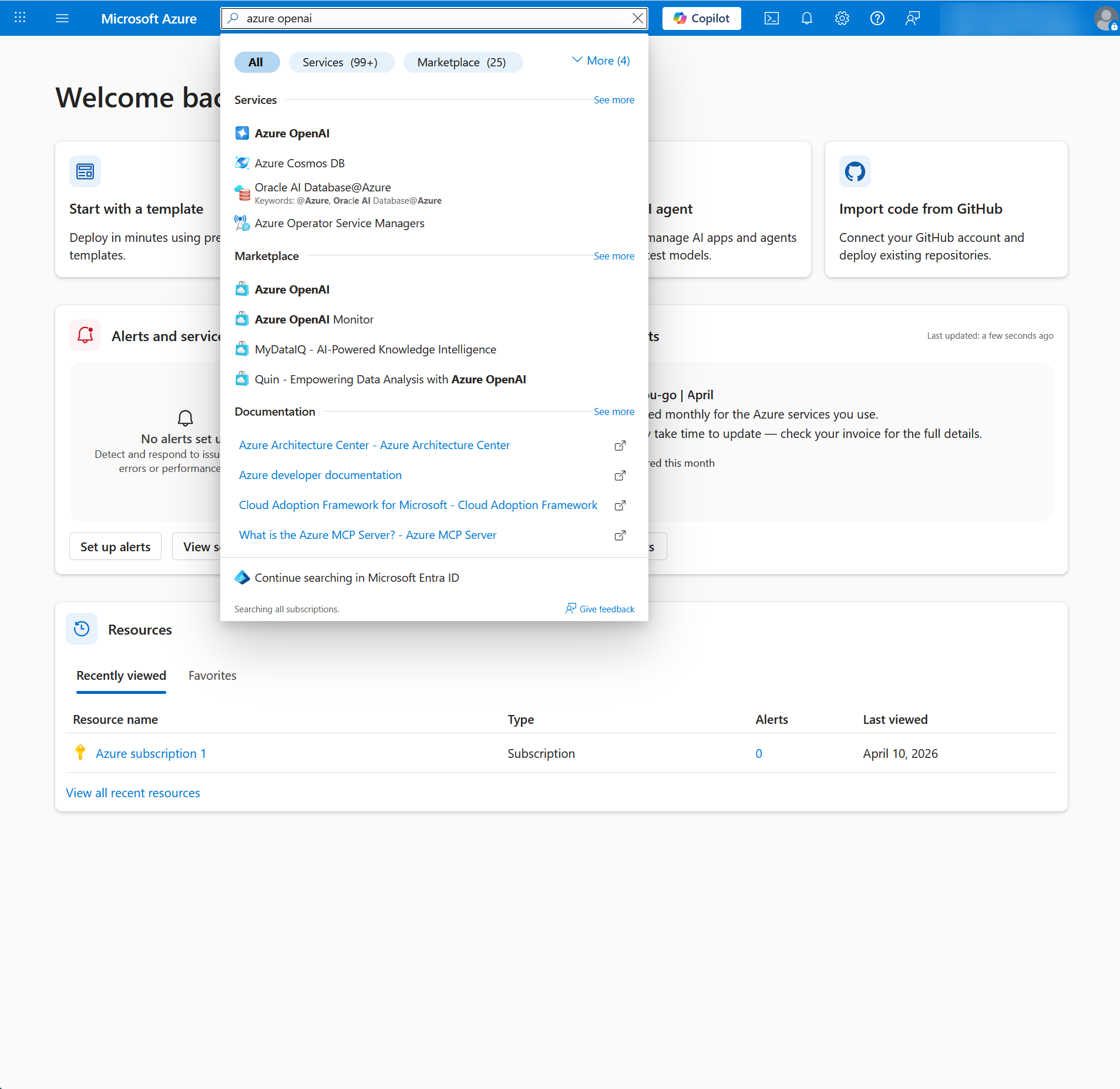
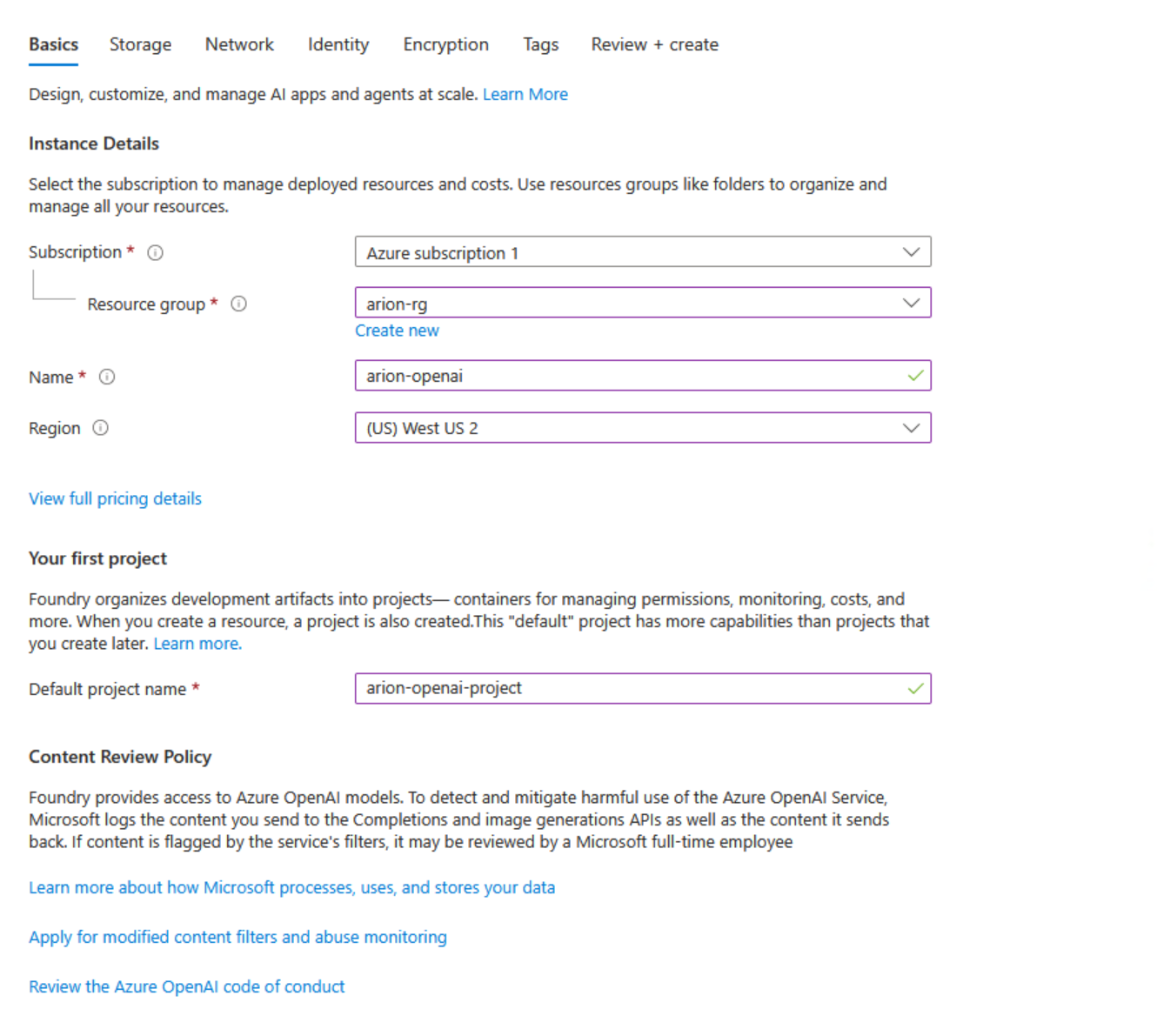
Steps
- Click + Create.
- Choose Foundry.
- Pick your Subscription (the free trial, unless you have more than one).
- Pick the Resource group you created earlier
(e.g.
chordalia-rg). - Give the resource a Name — this becomes part of the
endpoint URL, so pick something you'll recognise
(e.g.
chordalia-openai). - Pick a Region — not every region offers every model. East US, East US 2, and Sweden Central currently have the widest model selection.
- Enter a Default project name — Azure suggests
one based on your resource name. Accept the suggestion or pick
something simple
(e.g.
chordalia-openai-project). This is the AI Foundry project the resource gets linked to. - Click Review + Create.
- Click Create.
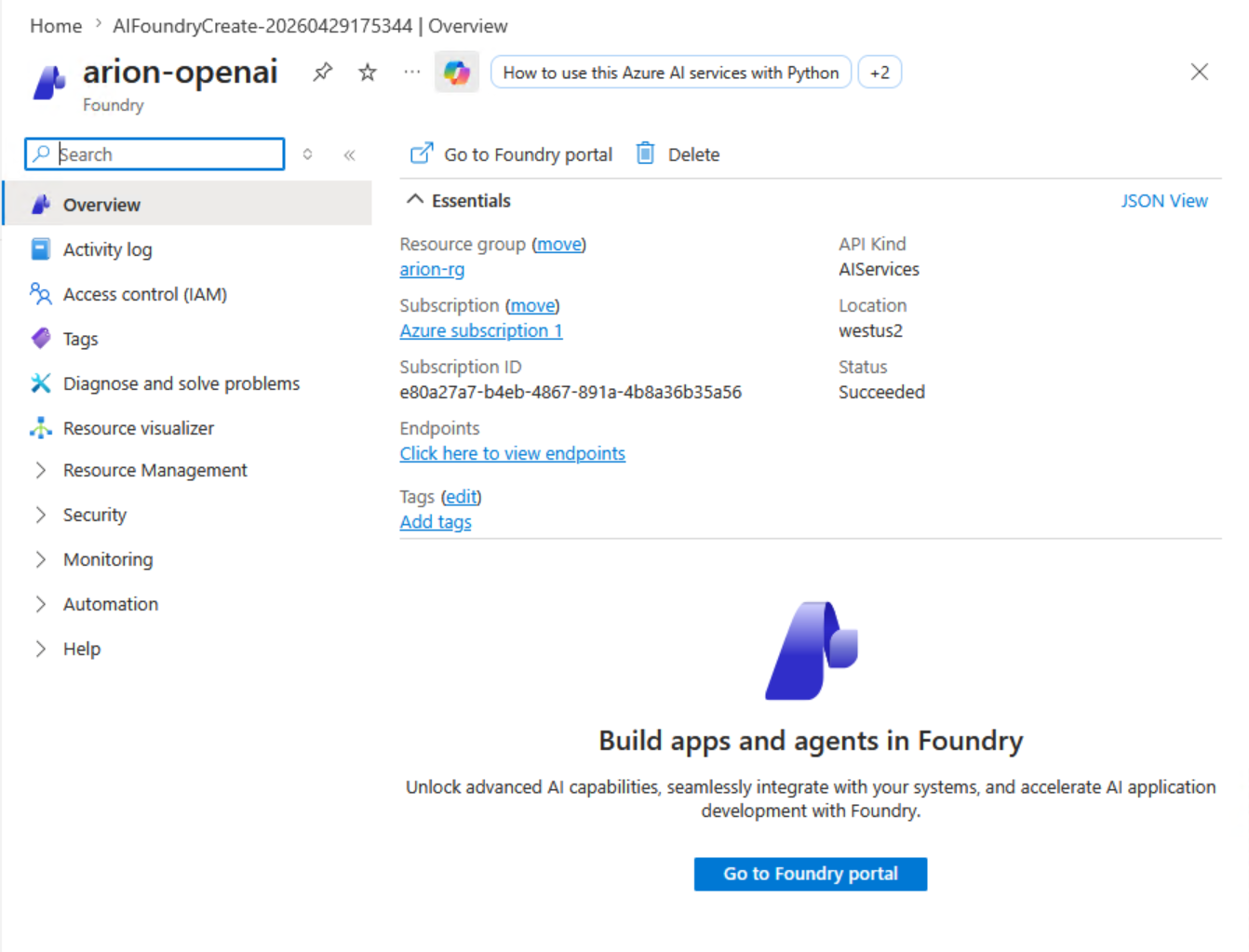
Provisioning takes a minute or two. When it's done, the portal shows a Go to resource button — click it.
3 Deploy a model
Creating the Azure OpenAI resource is only half the work. The resource is a container; the actual models (GPT-4o, GPT-4o-mini, etc.) have to be explicitly deployed inside it before you can use them.
From the resource overview page, click Go to Foundry portal (also called Azure AI Studio). This opens a new tab.
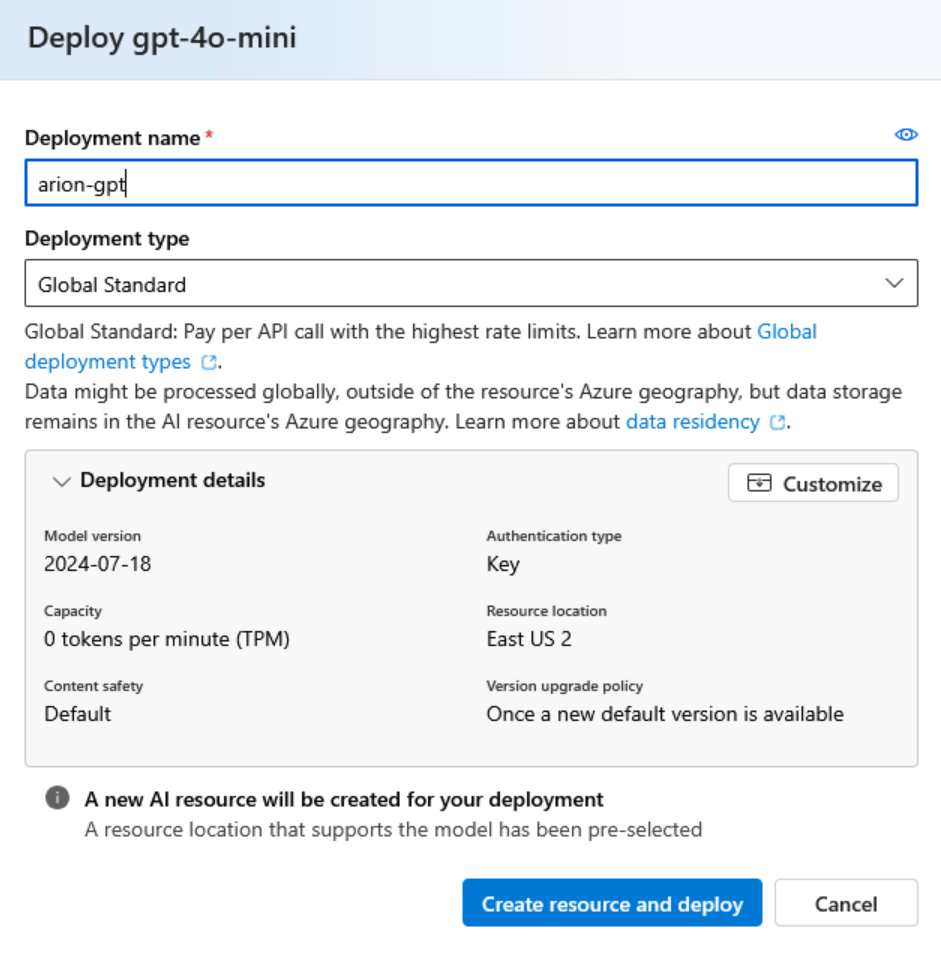
Deployment steps
- In Azure AI Foundry, click Model catalog in the left sidebar.
- Search for and select the model you want to deploy. GPT-4o-mini is the recommended default: cheap, fast, quality is plenty good for document Q&A. Upgrade to GPT-4o if you want richer answers.
- Click Use this model.
- Give the deployment a Deployment name — this is
what Chordalia products use to select this model. Keep it simple:
gpt-4o-miniorchordalia-gpt. - Leave the rest at defaults and click Create resource and deploy.
my-gpt
but try to use gpt-4o-mini in Arion's settings, you'll
get a "deployment not found" error. Copy your deployment name
exactly when you configure the product.
4 Copy the endpoint and API key
Back in the Azure portal, open your Azure OpenAI resource. In the left sidebar, click Keys and Endpoint.
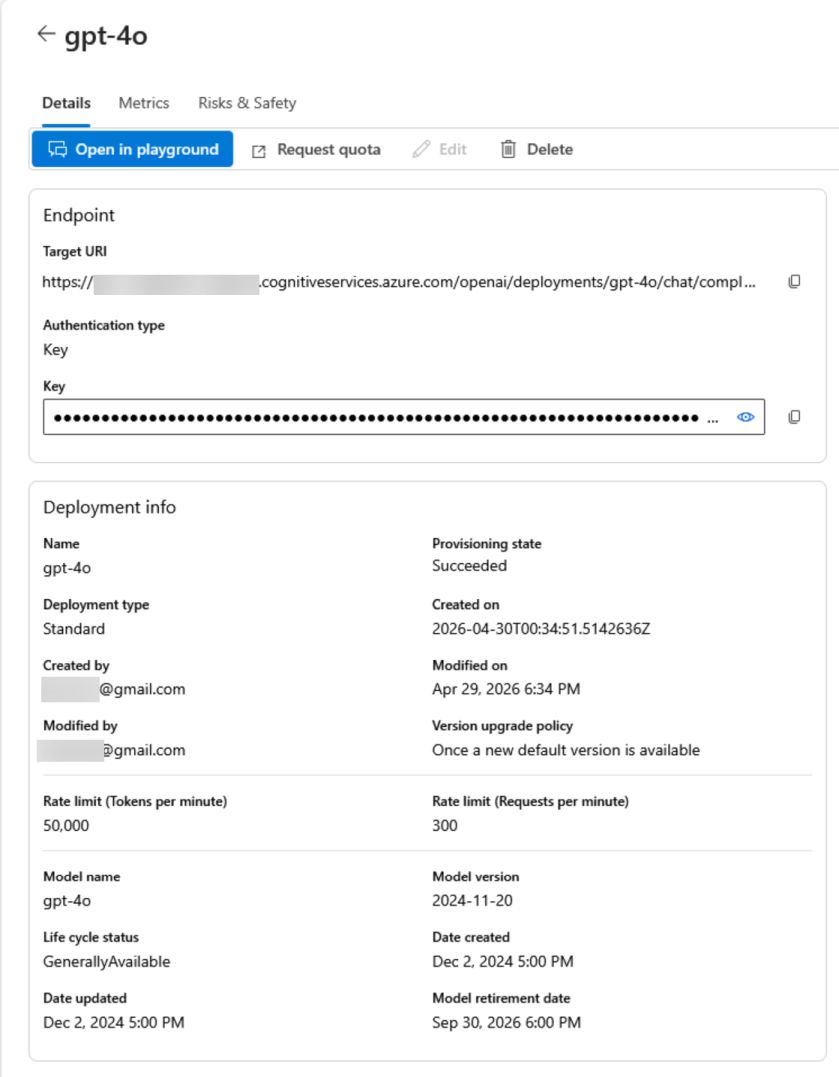
You'll see three things you need to copy:
- Endpoint — a URL like
https://keirnifia-eastus2.cognitiveservices.azure.com/ - KEY 1 — a long hex string. Click the eye icon to reveal it, then the copy icon.
- The Deployment name from the previous step.
- These values go in the Azure AI Search section of the Azure (Tier 2) page of Settings along with a name you choose for your index.
Using Azure OpenAI in your Chordalia product
Arion — Tier 2
Open Settings → Azure (Tier 2). Scroll to the Azure OpenAI group box (lower half of the tab) — not the Azure AI Search group above it, which is for a different service. Paste:
- Endpoint → OpenAI Endpoint
- KEY 1 → API Key
- Deployment name → Deployment Name
Also set Arion's tier to Tier 2 on the Search Tier tab.
Chordium
Edit chordium.yml or use the admin UI:
azure.openai.endpointazure.openai.api_keyazure.openai.deployment
Cadenzium
Open Settings → AI, pick Azure OpenAI as the provider, and paste the three values above.
! Troubleshooting
"The API deployment for this resource does not exist"
You're referring to a deployment name that doesn't match anything deployed in the resource. Open Azure AI Foundry → Deployments and copy the exact name shown there — it's case-sensitive.
"401 Unauthorized" or "Invalid authorization header"
The API key is wrong, expired, or was regenerated. Go back to Keys and Endpoint, copy KEY 1 freshly (the eye icon shows it, the copy icon puts it on your clipboard), and paste it into the product settings again.
"The specified model is not supported in the selected region"
Not every Azure region offers every model. GPT-4o variants are usually available in East US, East US 2, and Sweden Central; newer or preview models may be in only one region at a time. Either pick a different model, or create a new Azure OpenAI resource in a region that offers what you want.
Deployment is blocked because "Tokens per minute" is locked at 0
Common on free-trial subscriptions: the model you picked has 0 TPM allocated to your subscription in that region, so the deployment slider is stuck at zero and the Deploy button is disabled.
To diagnose and resolve, in priority order:
- Confirm with the Quotas page. Search the portal for Quotas → Azure OpenAI (or Cognitive Services), filter by your subscription and region. If Limit is 0 for the model you tried, that's it.
- Try a different model in the same region. GPT-4o (full) and GPT-4o-mini have separate quota pools — one may be allocated even when the other is at zero. This is the cheapest experiment and resolves the issue most of the time.
- Try a different region. Delete the resource and create a new one in East US 2 or Sweden Central (typically less saturated than East US for new accounts).
- Request a quota increase. From the Quotas page, click Request quota increase on the relevant row. Ask for 30K TPM — that's plenty for Chordalia-product usage. Small bumps are usually auto-approved within an hour.
Answers are cut off mid-sentence
The model hit its output-token limit. Chordalia products set sensible defaults (~1000 tokens), enough for a page or two of prose. If you need longer answers, raise the limit in the product's settings (Arion: Settings → AI Prompt → tuning options, when available).
Unexpected charges on my bill
Most "surprise" Azure OpenAI bills come from applications left running in a loop by mistake. In the Azure portal, go to Cost Management + Billing → Cost analysis to see which resource is spending the most, and set a Budget with an email alert at 80% of your monthly cap.
How do I delete an Azure OpenAI resource?
Open the resource in the portal, click Delete at
the top. To remove everything at once (OpenAI resource, deployments,
logs), delete the whole resource group instead — that's why
we used a dedicated chordalia-rg.